Tester Onboarding Brochure & Share Kit
Test Greenlight on Your iPhone.
Send date offers. Not likes. Everything a new tester needs to install Greenlight through Apple TestFlight, finish a real member profile in three minutes, and try sending or accepting date offers firsthand.
Step-by-Step Tester Walkthrough
Five Steps from Invite to Your First Date Offer
Written in plain English so you can send this link straight to any friend, team member, or early tester with zero tech setup required.
Send Us Your Exact Apple ID Email & Download TestFlight
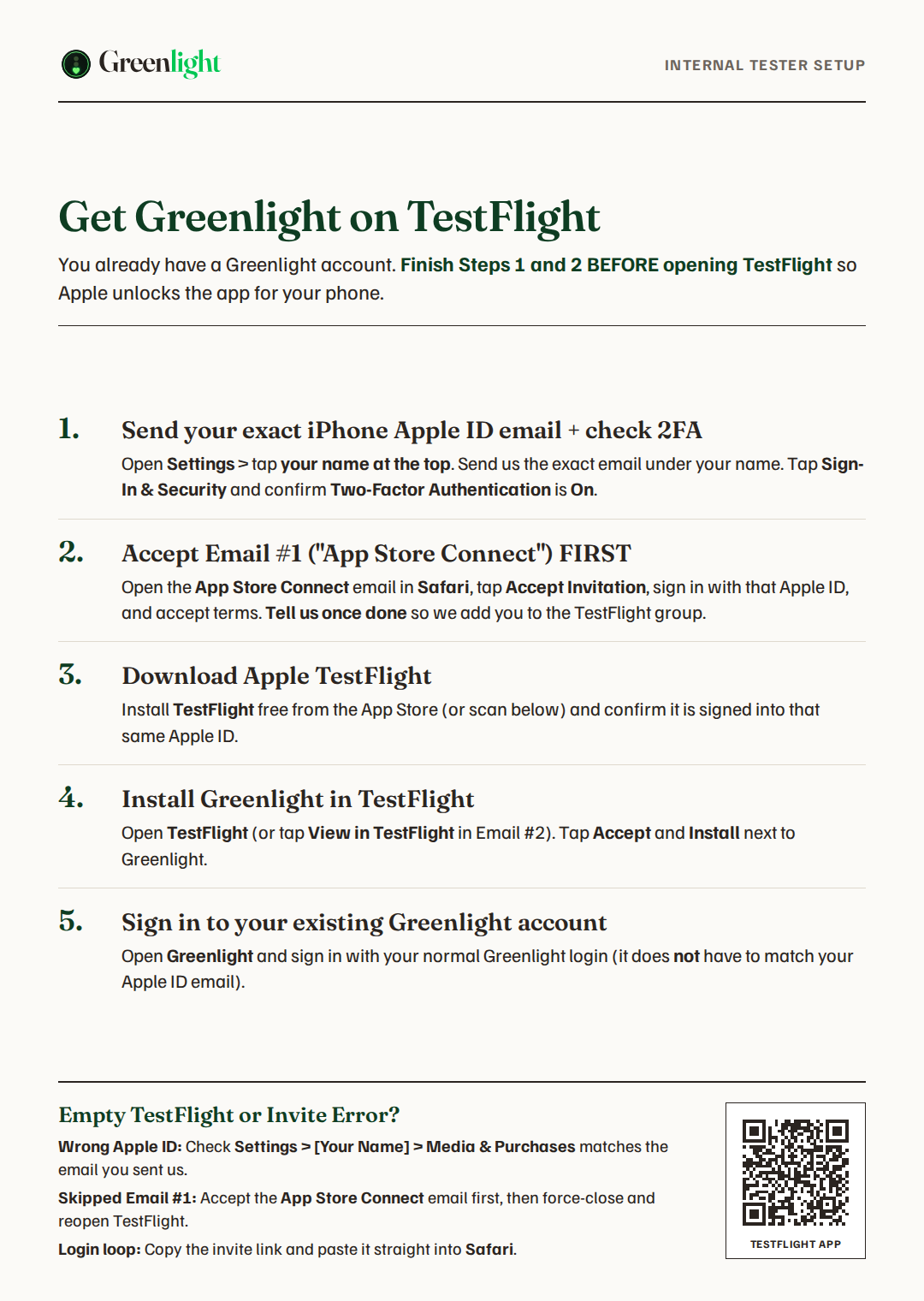
Because you are joining as an internal tester, the email address we invite must be the exact email tied to your iPhone's Apple ID. Not sure which email your iPhone uses? Open Settings and tap your name at the very top to check. Once you send us that Apple ID email, open the App Store and install Apple TestFlight.
Think of an internal TestFlight invite like a boarding pass printed with your legal ID name: if we send the invite to your work email while your iPhone App Store is signed into an iCloud or personal Gmail Apple ID, Apple's door check will block it.
Accept the Invite on That Same Apple ID
Open the Apple TestFlight invite sent to your Apple ID email on your iPhone and tap View in TestFlight, or open TestFlight, tap Redeem in the top right corner, and type in your 8-letter code. Tap Accept, then tap Install.
Ready to swap in the moment Apple approves Beta App Review. Today, use the Invite Email or Redeem Code steps above.
Create Your Greenlight Account (18+)
Open Greenlight from your iPhone Home Screen. Inside Greenlight itself, you can sign up with Continue with Apple, Continue with Google, or any email, password, and birthday you prefer. If you sign up with email, tap the confirmation link sent to your inbox, come back to the app, and pick who you are and who you want to date.
Publish Your Profile (Use an NYC or NJ Launch City)
Upload 3 to 6 photos, write a quick bio (25 to 300 characters), pick at least one interest and date idea, add at least one open time window (or turn on Available 24/7), check the terms box, and tap Publish Profile.
Why the city you pick matters: Right now Greenlight only opens the main room to New York and New Jersey launch cities (New York, Brooklyn, Queens, Long Island, Hoboken, Jersey City, Weehawken, and Newark). Like a neighborhood club checking zip codes at the door, picking Miami or Chicago sends you to the waiting room instead of the live app. Pick an NYC or NJ city from the dropdown so you walk straight inside.
Try It Like a Real Member & Send Feedback
Browse Discover to view real profiles and open availability windows. Tap someone to build a Date Offer with a real activity, day, time, and spot. Check Offers to accept, counter, or decline, and open Messages once an offer is accepted.
On Greenlight there is no endless swiping or aimless pen-pal texting: chat unlocks only after a date offer is accepted, with 20 messages per person to coordinate meeting up. If anything looks off while testing, take a normal iPhone screenshot (Side button + Volume Up) and tap Share Beta Feedback in TestFlight.

Live Discover feed inside the iPhone app, showing verified badges and open date windows.
What Testers Experience Inside
How the Date-First Loop Works
Once a tester publishes their profile, these three screens are the core journey to try out.
1. Browse Discover
See published profiles in your area along with how many time windows each person has open this week.

2. Send or Counter Offers
Every offer has a concrete plan, time, place, and 24-hour response clock. Recipients accept, counter once, or decline.

3. Accepted Opens Chat
Accepting locks in the date slot and opens a focused 20-message thread to confirm details before meeting.
Ready-to-Send Brochures & Phone Cards
Two Editions: Invite Code Now + Public Link Swap-Ready
Each edition comes as a selectable 1-page Letter PDF (for email, AirDrop, or printing) and a vertical 9:16 phone image (for texting in iMessage, WhatsApp, or Instagram DMs).
Edition A · Internal Tester Invite & Redeem Code (Use Today)
Built for internal testers you invite right now: explicitly tells testers the invite email must match their iPhone Apple ID email, with a QR code straight to Apple TestFlight.

Edition B · Public Join Link (Ready for Apple Approval)
Written for the one-tap public TestFlight link as soon as Apple Beta App Review approves the external build.


Pullable Handoff Assets
Every File in One Place
Grab any individual file below, or download the complete zip bundle (includes plain-text Markdown copy and official brand tokens for AI tools).
| Asset | Format & Use | Download |
|---|---|---|
| Invite / Code Brochure | 1-page Letter vector-text PDF (selectable text, 300 DPI print & email ready) | greenlight-testflight-brochure.pdf |
| Invite / Code Phone Card | 1080 x 1920 vertical PNG sized for iMessage, WhatsApp, and group chats | greenlight-testflight-card.png |
| Public-Link Brochure | 1-page Letter vector-text PDF for one-tap TestFlight public link | greenlight-testflight-public-link-brochure.pdf |
| Public-Link Phone Card | 1080 x 1920 vertical PNG for one-tap TestFlight public link | greenlight-testflight-public-link-card.png |
| TestFlight App Store QR | High-contrast dark-ink QR code pointing to Apple TestFlight | SVG · PNG |
| Greenlight Web Signup QR | High-contrast dark-ink QR code pointing to greenlightdate.com/sign-up | SVG · PNG |
| Plain-Text & Brand Tokens | Machine-readable copy companion and verified WCAG color palette | README.md · colors.json |
| Complete Brochure Kit | All PDFs, phone cards, iPhone cutouts, QR codes, logos, and README in one zip | greenlight-testflight-kit.zip |


